Exporting OpenTimelineIOv4.0.544
You can export a Remotion composition as an OpenTimelineIO (.otio) timeline using a skill.
This allows you to continue editing in another video editor, such as DaVinci Resolve or Adobe Premiere Pro.
Using the /remotion-render skill
With the Agent Skills installed, ask your agent (replace MyComposition with your composition name):
/remotion-render Export MyComposition as an OpenTimelineIO (.otio) timelineFor a parameterized composition, also specify the input props to export.
From Remotion Studio
1 Install the Remotion Agent Skills in the project.
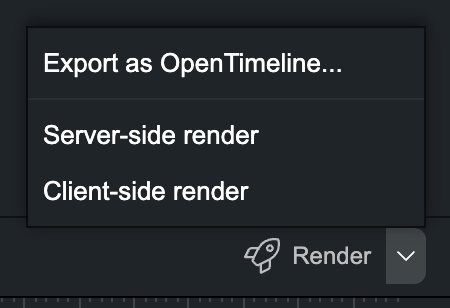
2 Open a composition in Remotion Studio. Click the dropdown next to Render, then Export as OpenTimeline....
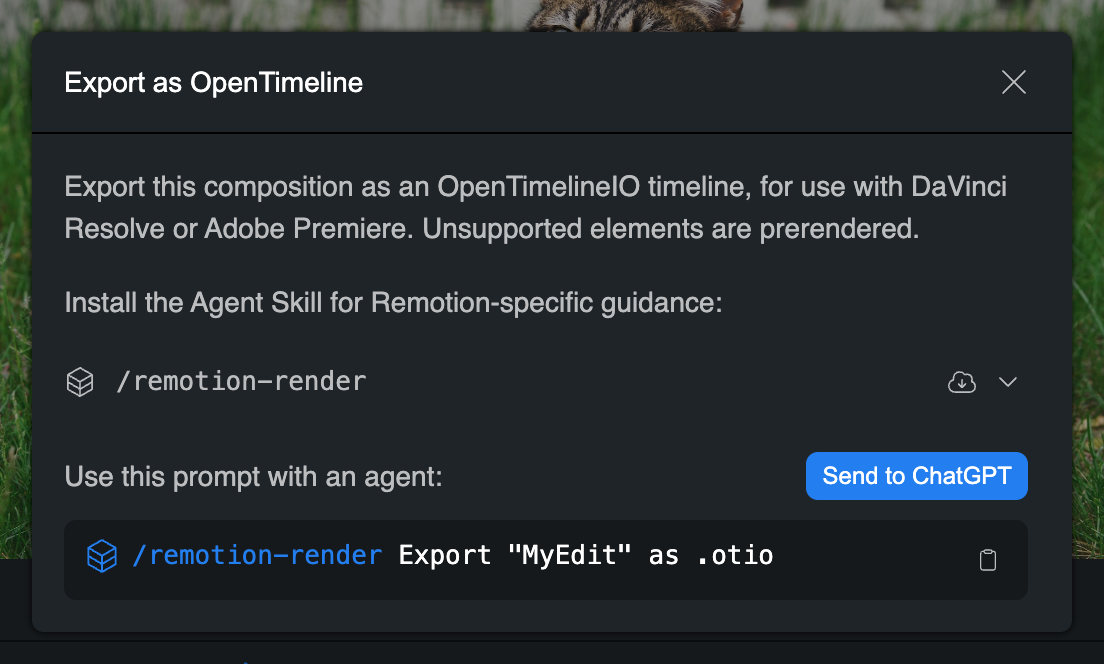
3 Copy the suggested prompt into your coding agent, or choose Send to ChatGPT when available.
What gets exported
The export is a folder with an .otio file and the media it references.
Our primary goal is that the timeline can be imported in another program without changing the visuals and audio.
The output tries to be as dynamic as possible, but some elements may need to be prerendered.
This can be text, animations and effects and audio.
The agent will report which elements remain editable and which have been prerendered.
Open in a video editor
In DaVinci Resolve, choose File → Import → Timeline... and select the .otio file.
If media appears offline after moving the export folder, relink it to the media files in that folder.
If you know instructions for other video editing programs, please send a PR with instructions to this page.