Importing OpenTimelineIO
You can import an OpenTimelineIO (.otio) timeline as an editable Remotion composition.
In Remotion Studiov4.0.542
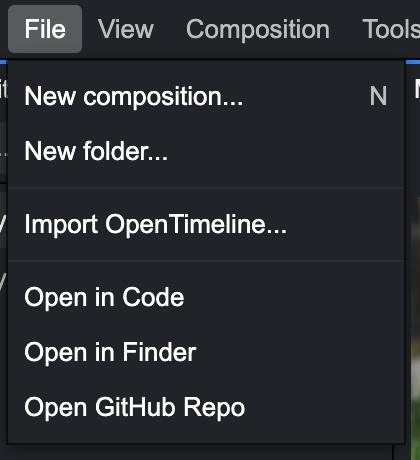
Open Remotion Studio and choose File → Import OpenTimeline....
Select an .otio file.
Choose a composition name, width, height, and composition folder.
Frame rate and duration are automatically detected.
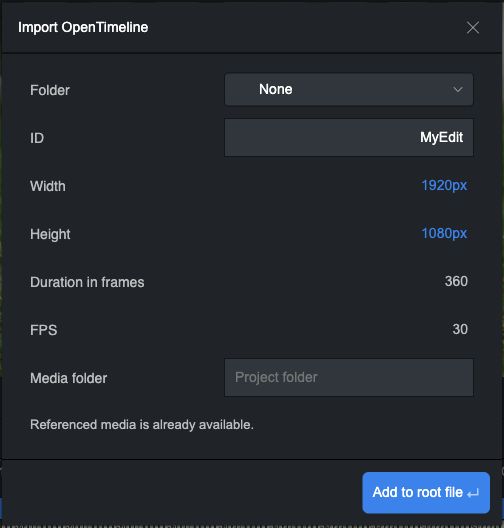
Click Add to root file.
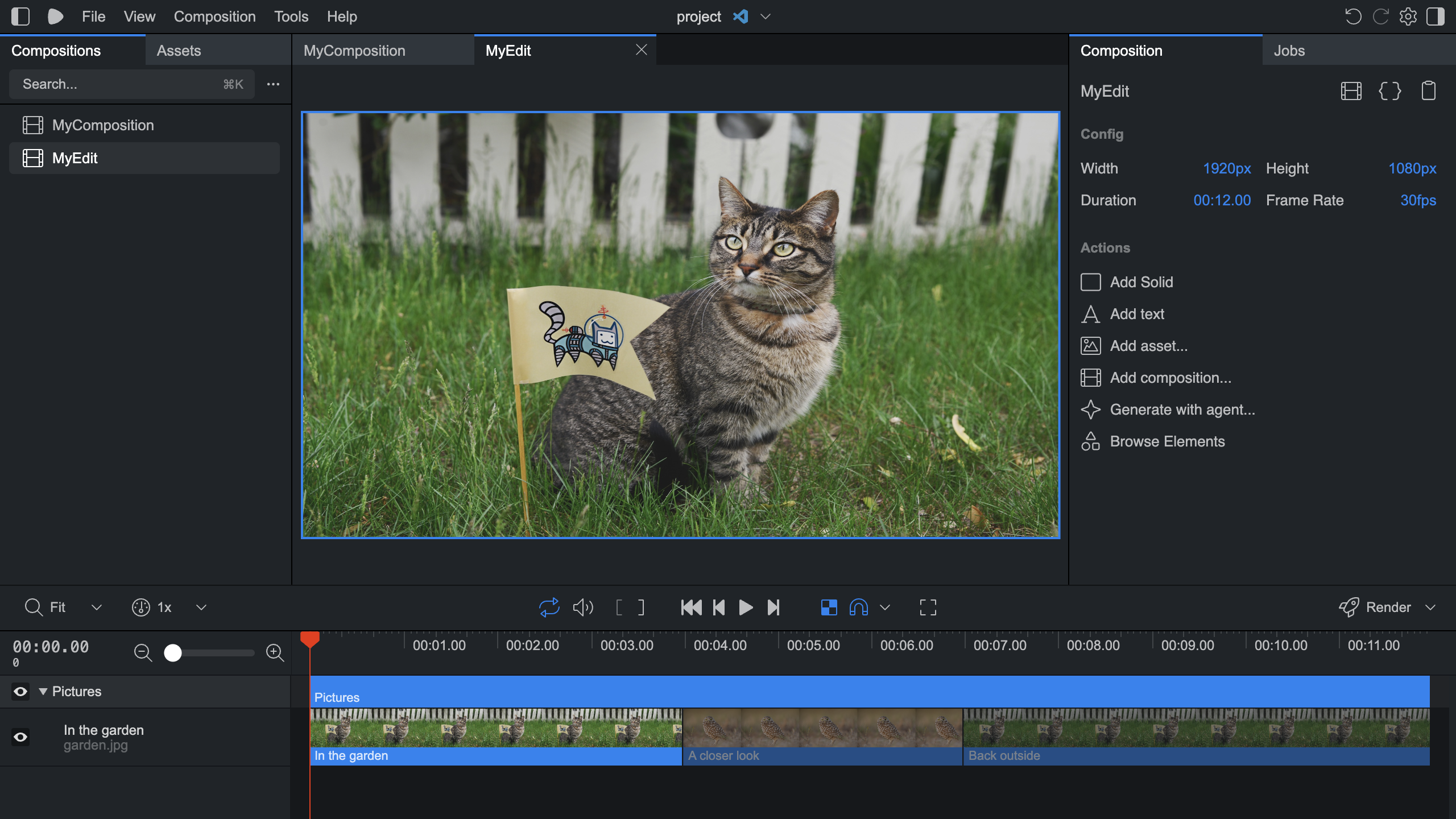
A new composition will be created and opened for editing.
Via the CLIv4.0.543
Use the npx remotion open-timeline import from the Remotion project:
Import a timelinenpx remotion open-timeline import my-edit.otio
Specify the composition ID, and where the media files are located with flags:
Choose the composition settingsnpx remotion open-timeline import my-edit.otio \ --composition=MyEdit \ --media-dir=/path/to/media
Programmaticallyv4.0.542
Experimental: @remotion/codemods is not stable and subject to change.
Install @remotion/codemods at the same version as the other Remotion packages in the project:
- Remotion CLI
- npm
- bun
- pnpm
- yarn
npx remotion add @remotion/codemods
This assumes you are currently using v4.0.545 of Remotion.npm i --save-exact @remotion/[email protected]
Also update
remotion and all `@remotion/*` packages to the same version.Remove all
^ character in front of the version numbers of it as it can lead to a version conflict.This assumes you are currently using v4.0.545 of Remotion.pnpm i @remotion/[email protected]
Also update
remotion and all `@remotion/*` packages to the same version.Remove all
^ character in front of the version numbers of it as it can lead to a version conflict.This assumes you are currently using v4.0.545 of Remotion.bun i @remotion/[email protected]
Also update
remotion and all `@remotion/*` packages to the same version.Remove all
^ character in front of the version numbers of it as it can lead to a version conflict.This assumes you are currently using v4.0.545 of Remotion.yarn --exact add @remotion/[email protected]
Also update
remotion and all `@remotion/*` packages to the same version.Remove all
^ character in front of the version numbers of it as it can lead to a version conflict.Use addOpenTimelineComposition() to create a component and register it in the root file:
import-timeline.tsimport {readFileSync ,writeFileSync } from 'node:fs'; import {addOpenTimelineComposition } from '@remotion/codemods'; constresult =addOpenTimelineComposition ({project : {rootDir :process .cwd (),files : { 'src/Root.tsx':readFileSync ('src/Root.tsx', 'utf8'), }, },compositionFile : 'src/Root.tsx',compositionId : 'MyEdit',component : {filePath : 'src/MyEdit.tsx',importName : 'MyEdit',importPath : './MyEdit', },timeline :readFileSync ('my-edit.otio', 'utf8'),width : 1920,height : 1080,fps : 30, }); for (constchange ofresult .changes ) { if (change .nextContents !== null) {writeFileSync (change .filePath ,change .nextContents ); } }
The function does not copy media or install dependencies.
Referenced media
The .otio file does not explicitly specify where the media files live.
You must explicitly say where they are.
By default, Studio looks in the same folder where the .otio file lies.
If media cannot be found, Studio shows a button Locate media... where you can select its folder.
remotion.new only supports URLs and existing public assets.
Referenced local files are copied into the project's public folder.
Limitations
Not all OpenTimeline effects are supported. Warnings are shown in Studio, CLI and emitted from the programmatic API.
Reverse playback, custom transitions, and unsupported timeline structures may throw an error and prevent importing.
Application-specific crop, scale, and color adjustments are not interpreted.
See supported timelines for the full compatibility details.