Prompt to Motion Graphics SaaS Starter Kit
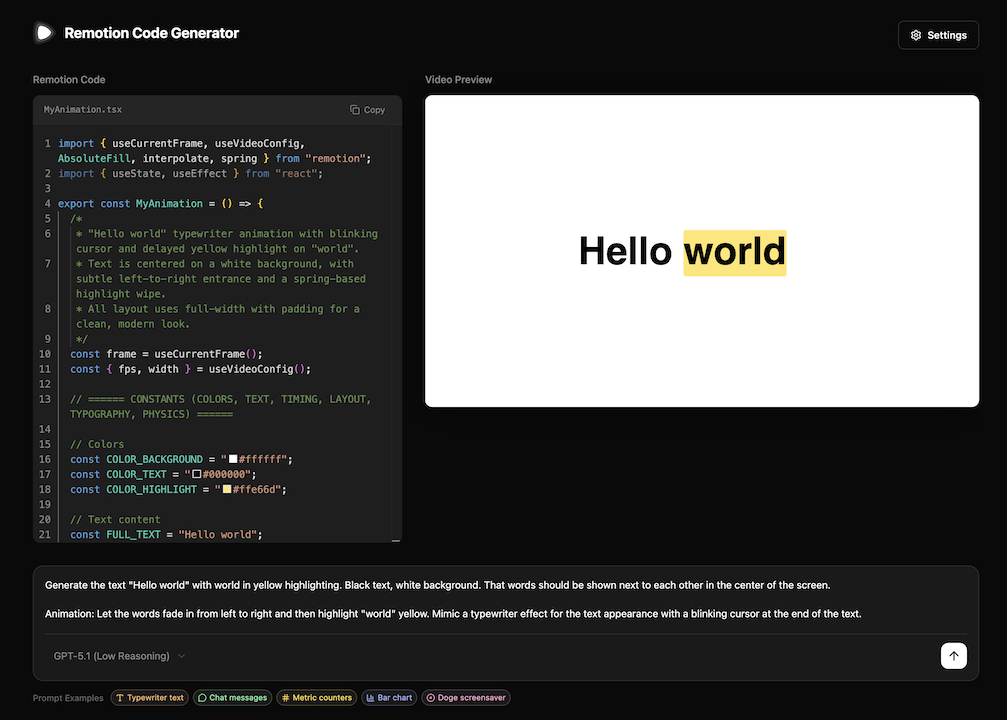
We made a Next.js starter template for building AI-powered motion graphics products.
Users describe an animation in natural language, and the app generates and previews it in real-time.
Getting Started
Scaffold a new project:
npx create-video@latest --template prompt-to-motion-graphicsThen create a .env file:
.envOPENAI_API_KEY=sk-...
Start the development server:
npm run devVisit http://localhost:3000 to start generating animations.
Difference to Remotion Agent Skills
Use this template if you want to build a SaaS with Remotion and AI.
Use Agent Skills if you want to prompt videos for yourself.
Unlike the Agent Skills workflow, this template does not have access to an operating system or the filesystem.
What's Included
- Chat interface with conversation history for iterative refinement
- Live preview - instant rendering in the Remotion Player
- Smart editing - the LLM decides between targeted edits or full replacement
- Input Validation - prevents end-user misuse
- Sanitation - cleans nondeterministic LLM outputs
- Self-correction - automatically retries on compilation errors
It streams generated code and compiles it in the browser using just-in-time compilation.
Images
There is an important difference between attaching images to the prompt and mentioning image URLs in the prompt.
- Attaching images: The assistant will try to replicate in code whatever you attach to the prompt, for example an abstract spiral.
- Providing image URLs: The assistant will embed the provided image within the animation based on the file URL. For example: "Create a DVD screensaver animation of this image https://example.com/logo.png"
Lambda Rendering
To enable video exporting with Remotion Lambda:
- Set up Remotion Lambda following the Lambda guide
- Add AWS credentials to
.env
.envOPENAI_API_KEY=sk-... # Add AWS credentials for Lambda rendering REMOTION_AWS_ACCESS_KEY_ID=... REMOTION_AWS_SECRET_ACCESS_KEY=...
- Deploy with
npm run deploy.
See Also
- Code Generation - How to generate Remotion code with LLMs
- Just-in-time Compilation - Compiling React code in the browser
- System Prompt - Reference system prompt for Remotion